Collect photo contest entries
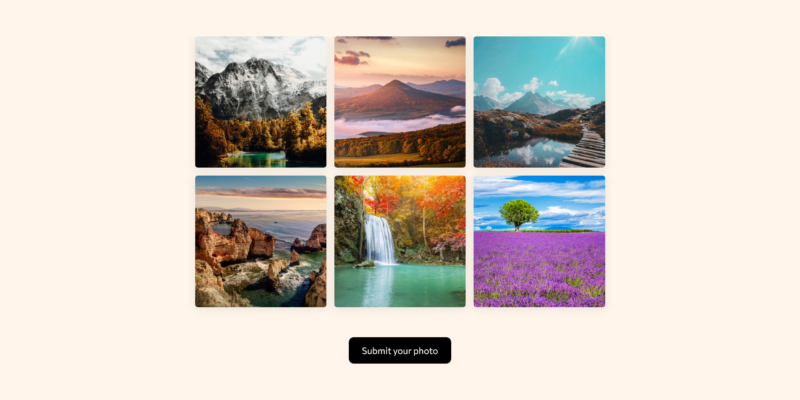
Whether you’re organizing a photography competition or inviting customers to capture your products in use, this template gives participants a place to upload their photos and tell you a little about them. Each submission keeps the images, contact details and answers together in Woorise, ready for you to review.
Start with the included fields for name, email, photo title and description, then adapt the form to your contest. Allow one photo or several, specify accepted file types and upload sizes, or add categories such as landscape, wildlife and portrait. If different categories need different information, use conditional logic to show the relevant questions.
Make the entry requirements easy to follow
Add instructions beside the upload field so participants know what to submit, and place a link to your contest rules near the agreement checkbox. The rules can open in a popup, letting entrants read them without leaving the form or losing their progress.
You can also limit repeat submissions by email or IP address and schedule when the form accepts entries, with a custom message for visitors who arrive after the deadline.
Give every entrant a clear next step
After submission, show a personalized confirmation using details from the entry, such as the participant’s name or photo title. Use that message to explain when judging takes place and how winners will be contacted, then send an automatic email notification so entrants have the information in their inbox.
Set up a separate notification for your team when a new entry arrives, including the submitted details you need for review.
Publish it for your audience
Customize the page, form and button text to match your contest, then share a direct link or embed it on your website. For a multilingual audience, translate the entry instructions, field labels and participant messages into the languages you need.
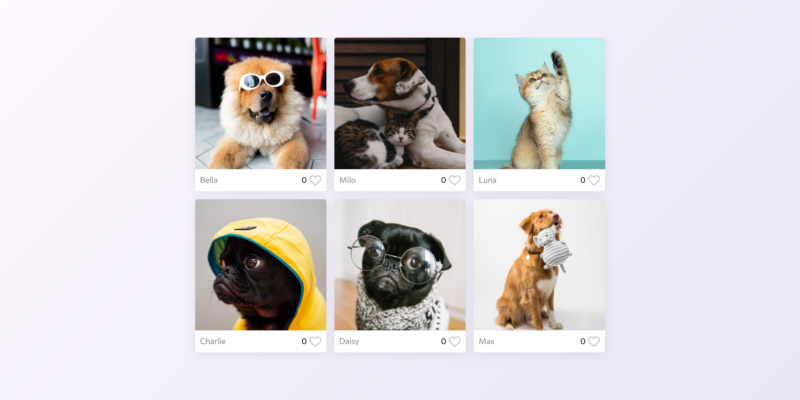
As entries arrive, review photos alongside their descriptions and participant details, or export entry data for your judging process. You choose the winners using your own criteria; if you later want an audience choice award, you can display approved submissions in a gallery and add voting.
How it works
- Click Use Template to add the Photo Contest Entry Form to your Woorise site.
- In the Form > Conversational forms, replace the example content with your contest details, prize and rules, then adjust the layout and branding.
- Open the Form editor to edit participant fields and configure the File Upload field’s accepted formats, file size and number of photos.
- Set submission limits in the form settings, then customize Confirmations and Email Notifications to let entrants know what happens next.
- Publish your page and use the Share tab to copy its link or get the embed code for your website.
- Open the Entries tab to review submitted photos and participant details, or export entry data for your judges.
Frequently asked questions
Yes. Configure the upload field to accept multiple photos and set the maximum number of files per submission, along with accepted file types and size limits. If each photo needs its own title or description, add separate upload fields with matching questions.
Add a link that opens your rules in a popup beside a required agreement checkbox. Participants can read the eligibility requirements, judging criteria and photo usage terms without leaving the form, then confirm their agreement before submitting.
Yes. Use submitted field values to personalize the confirmation message and automatic email notification, for example by including the entrant’s name and photo title. Add your judging timeline and winner announcement details, and set up a separate email notification for your team.
Yes. Set submission limits using an email field or IP address, and schedule the form’s opening and closing dates. Customize the closed-form message to explain that entries have ended and tell visitors when to expect the results.
Yes. Add a category dropdown or multiple-choice field, then use conditional logic to display questions based on the selection. For example, a travel category could ask for the location, while a product photography category asks which product appears in the image.
Yes. Woorise supports multilingual campaigns, so you can translate your contest content and form labels for your audience. Include translated upload instructions, rules and confirmation messages so participants understand the entry process in their language.
Yes. While this template starts with photo submissions only, you can create a gallery showing approved entries and set up audience voting. Keep submissions and voting on separate pages, or bring them into one experience by embedding the upload campaign in a popup on the gallery page.