You can limit how many entries can be submitted from the same IP address using Woorise’s Limit Submissions feature. For example, you can allow one entry per IP for the entire campaign or let participants enter again each day.
Limit Submissions is available on paid plans.
Set up an IP entry limit
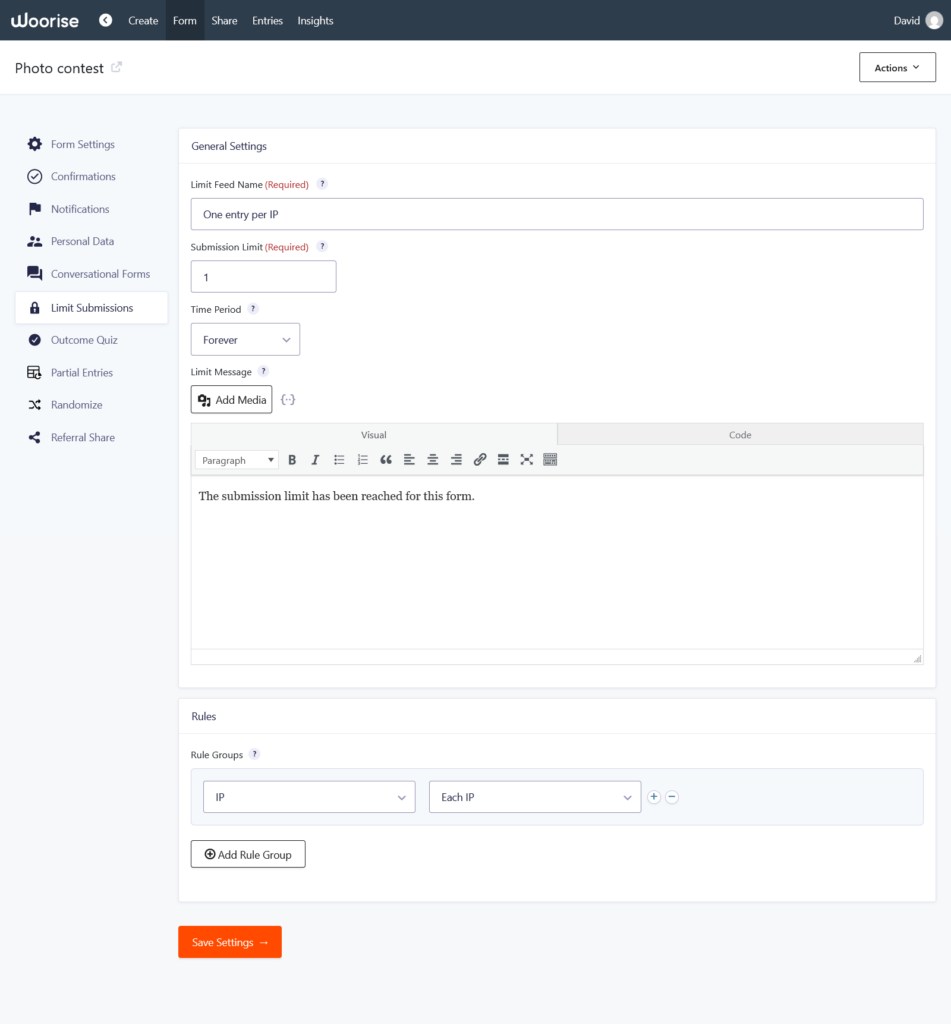
- From the Pages menu, select your campaign and go to Form > Settings > Limit Submissions.
- Click Add New to create a submission limit feed.
- Enter a Limit Feed Name, such as “One entry per IP.”
- Set Submission Limit to 1, or enter the number of submissions you want to allow from each IP.
- Choose a Time Period:
- Forever allows the specified number of entries from each IP across the entire campaign.
- Time Period counts entries within a rolling window, such as the previous 24 hours.
- Calendar Period > Per Day applies the limit separately each calendar day.
- Add a Limit Message, such as “You’ve reached the entry limit for your IP address.”
- Under Rules, select IP, then Each IP.
- Save your settings.
Each IP address now has its own entry allowance. Once that allowance is reached, further submissions from the same IP are blocked until the applicable period expires.
People using the same Wi-Fi or office network may share a public IP address, so they may also share the entry allowance. Participants can also have a different IP when they change networks or use a VPN. An IP limit can help reduce repeat entries, but it cannot guarantee one entry per person.
For more options, see our Limit Submissions guide.